





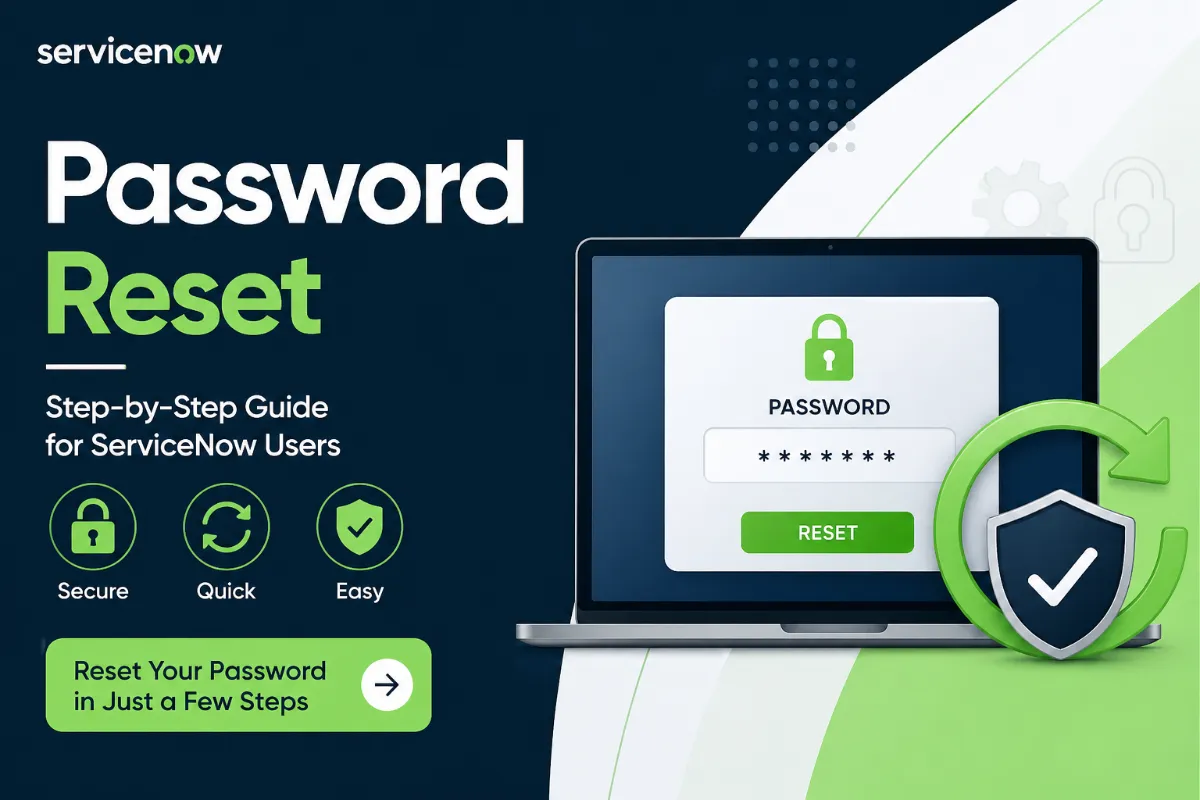


Password Reset Instructions (Step-by-Step Guide for ServiceNow Users)

ServiceNow Password Reset Instructions (Step-by-Step Guide for ServiceNow Users)
If you’re unable to access your account, following the correct password reset process is essential. This guide explains how to reset your password quickly and securely using the official ServiceNow system.
Whether you forgot your password or need to update it for security reasons, just follow the steps below.
🔐 When Do You Need a Password Reset?
You may need to reset your password if:
- You forgot your login credentials
- Your account is locked
- You want to improve account security
- You received a password expiry notification
📥 Password Reset Instructions (Step-by-Step)
Follow this simple process to reset your password:
1. Click on “Forgot Password.”
Go to the login page and select the “Forgot Password” option.
2. Enter User Details
Provide your username in this format:
👉 platform.user
Then complete the CAPTCHA verification (example: 7h7m6).
3. Click “Next.”
After entering the required details, click the Next button to proceed.
4. Accept Data Confirmation
You will see a Personal Data – Confirm Email Address prompt.
👉 Click Accept to continue.
5. Verify Email Address
Enter your registered email address:
👉 platform.user@servicenow.com
Then click Next.
6. Check Your Email
You will receive an email with instructions to reset your password.
👉 Open your inbox and follow the reset link.
7. Complete the Process
Once done, click Done on the screen.
Your password reset is now complete. ✅
⚠️ Important Tips for Password Reset
- Always use your registered email address
- Check the spam/junk folder if the email is delayed
- Do not share reset links with anyone
- Create a strong password (mix of letters, numbers, symbols)
❌ Common Issues & Fixes
Problem: Reset email not received
👉 Solution: Check the spam folder or wait a few minutes
Problem: CAPTCHA is not working
👉 Solution: Refresh and try again
Problem: Invalid username
👉 Solution: Ensure correct format (platform.user)
🔎 Why This Process Matters
The password reset system in ServiceNow is designed to:
- Protect user data
- Prevent unauthorized access
- Ensure secure identity verification
🏁 Final Words
Resetting your password doesn’t have to be complicated. By following the steps above, you can quickly regain access to your account without any issues.
👉 Bookmark this page for quick access whenever you need password reset help.
❓ FAQ
Q1. How long does it take to reset password?
Usually within 2–5 minutes after receiving the email.
Q2. What if I don’t receive the reset email?
Check spam folder or try again after some time.
Q3. Can I reset password without email access?
No, email verification is required for security.
About The Author
